Cybertech
Certification Authority
Introduction
The Cybertech Certification Authority is responsible to issue trusted certificates to devices and resources it maintains.
In order for these certificates to be trusted by your device, you need to install the Root Certificate Authority (RCA) and preferably also the intermediate Certificate Authority (CA) as trusted Root Certification Authorities.
Procedure
To do that, follow the instructions related to your device.
Click on the type of device you have:
Windows Computer:
If you have a windows computer, follow these steps on every device you use to access resources maintained by Cybertech:
1. Access this page from your internet browser
2. Click on CY-RCA and choose to open the file. After you complete these steps it’s preferable to do the same for CY-CA.
3. You should get the below popup. Click on the button “Install Certificate”.
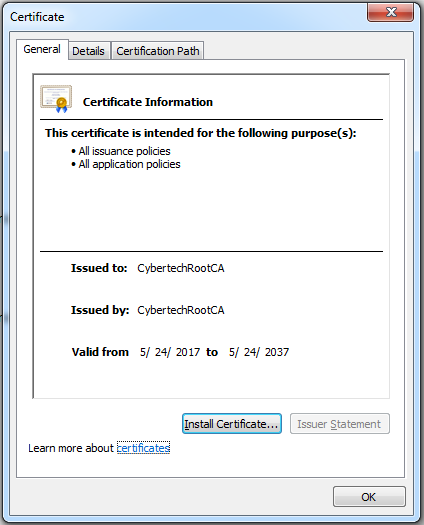
4. This will launch the Certificate Import Wizard. Click Next
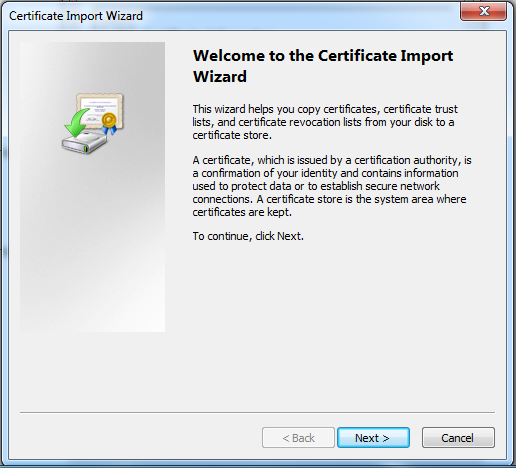
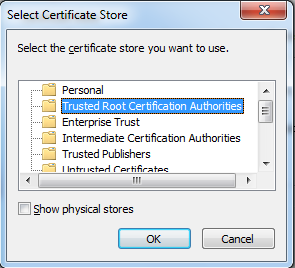
5. Choose the option “Place all certificates in the following store” and select browse.
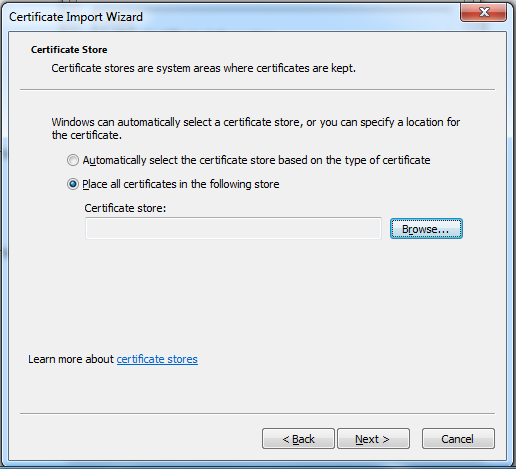
6. check “show physical stores”, then under “Trusted Root Certification Authorities” found at the top of the list select “Local Computer” and Click OK.

7. If “Local Computer” is not found as an option, uncheck “show physical stores”, and select “Trusted Root Certification Authorities” and Click OK.
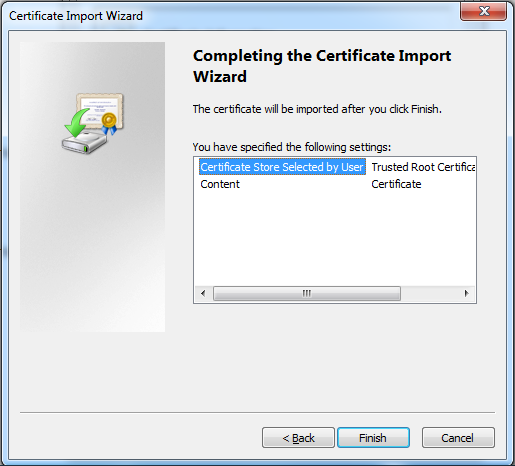
8. Click Next then Finish on Completing the Certificate Import Wizard
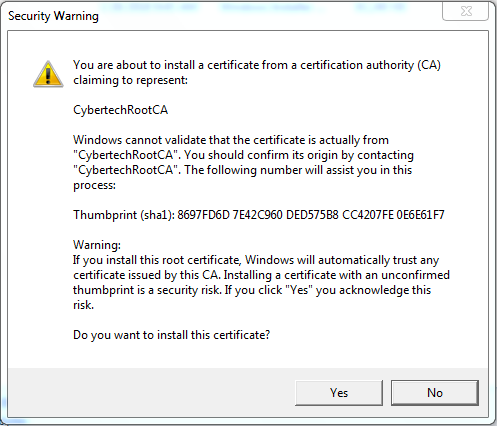
9. Click yes on the security warning to install the certificate
10. Now it’s preferable to do the same for CY-CA.
iPhone
If you have an iPhone, follow these steps on every device you use to access resources maintained by Cybertech:
1. Access this page from Safari
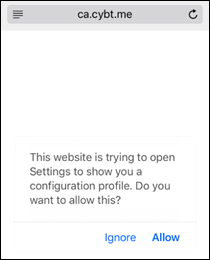
2. Click on CY-RCA and choose “Allow”
3. Click on Install at the top right
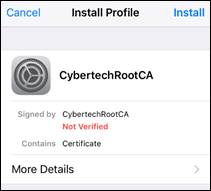
4. Again click on Install at the top right
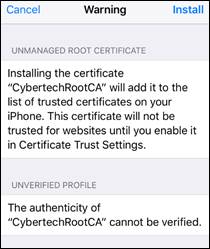
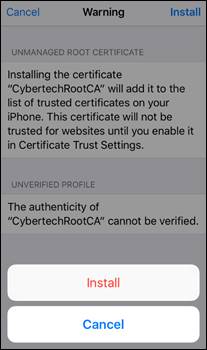
5. Click on Install at the bottom
6. Make sure Verified is green and click Done at the top right
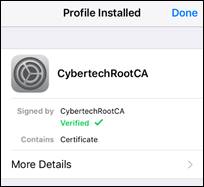
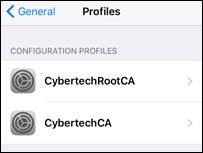
7. You should now have the certificate listed under Settings -> General -> Profiles
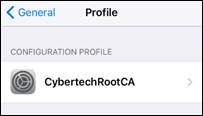
8. It’s preferable to do the same for CY-CA but not mandatory
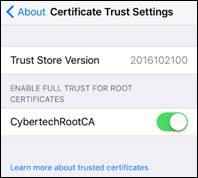
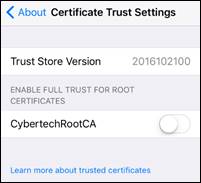
9. Now go to Settings -> General -> About -> Certificate Trust Settings and enable full trust for CybertechRootCA by moving its slider to the right
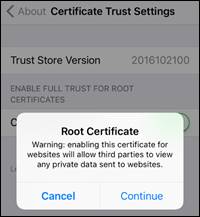
10. Click on Continue
11. the below screen means you successfully installed the certificate